
Custom fields in QuickBooks Desktop for customer tracking and reporting
How to use custom fields in QuickBooks Desktop to track customer attributes and include them in reports, without turning QuickBooks into a CRM.
QuickBooks Desktop is accounting software, not a CRM. Custom fields are useful when you need extra customer attributes for reporting and workflow, but they are not the right first tool for geography, branch structure, or area-wise A/R.
Do not use this post for geography design
If your real goal is region-wise balances, city grouping, or location-based customer structure, use the dedicated location guide first. This post is for the extra attributes that sit on top of that structure.
What QuickBooks Desktop custom fields actually are
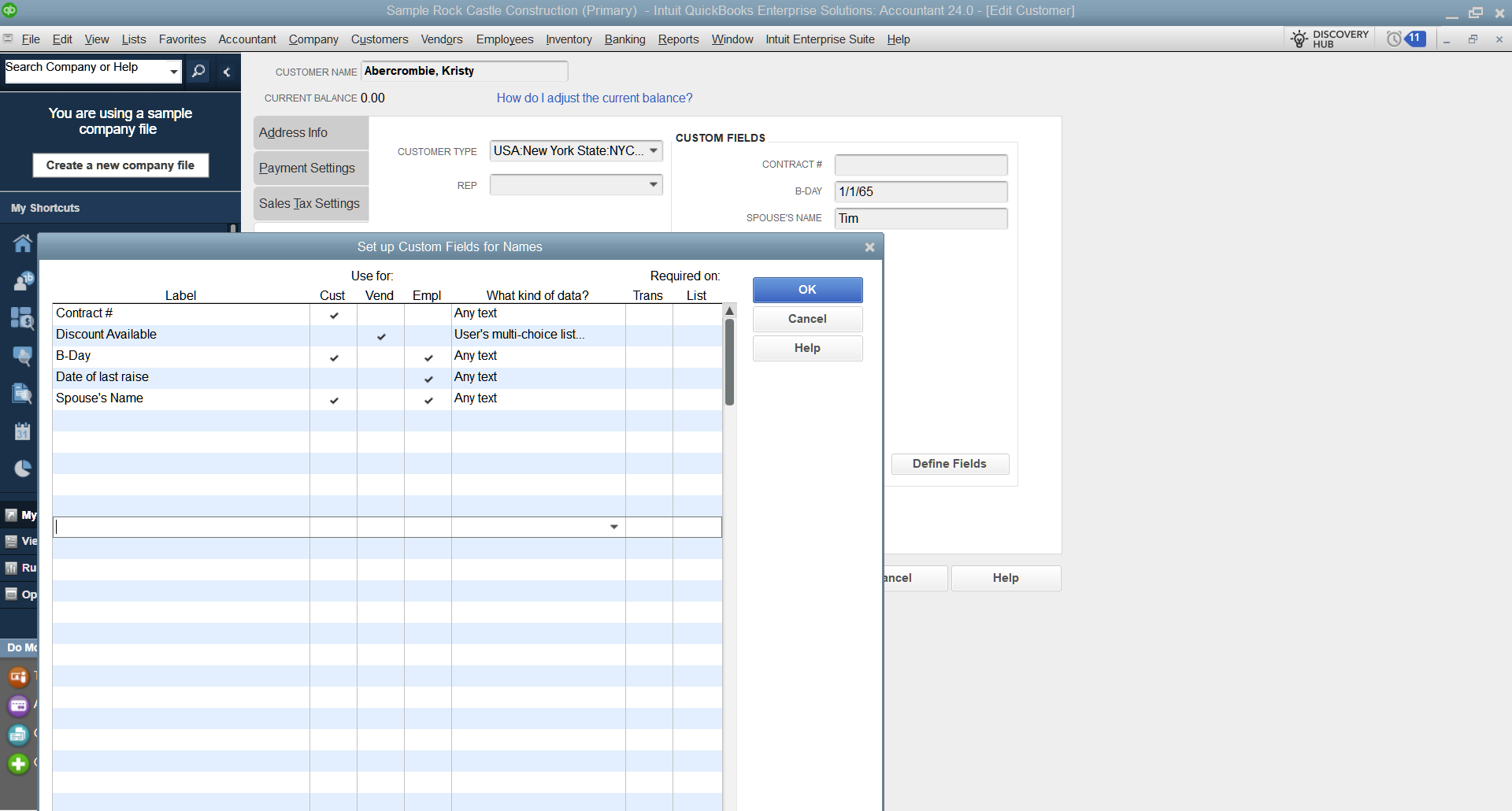
In QuickBooks Desktop Enterprise, custom fields can be defined from the Define Fields screen and tied to list records and selected transaction forms. You can decide whether a field is used on lists, transactions, or both. In supported cases you can keep it as free text or use a controlled multi-choice list, and you can choose whether it appears on printed forms such as invoices, sales orders, and estimates.
The screenshot below shows the actual Define Fields screen, which is the right place to explain how custom fields are configured in practice.
Examples of customer tracking fields that are practical
- Area / route / delivery zone: useful for dispatch and sales territory reporting.
- Preferred contact method: WhatsApp, call, email (store as text or via Customer Type conventions).
- Device / model for support businesses: phone model, POS terminal type, or installed version.
- Account category: retail, wholesale, distributor, corporate (often best handled using Customer Type).
- Client-specific identifiers: store code, branch code, contract ID, membership ID.
Meaningful customer tracking examples that stay accounting-relevant
Custom fields are most useful when they reflect real operational decisions: credit control, routing, tax handling, and pricing segmentation. Below are examples that teams actually use without turning QuickBooks into a CRM.
Credit and collections
- Credit hold status: Active / Hold / Manager approval required
- Collections priority: High / Medium / Low
- PO required: Yes / No (or a clear text rule like “PO required for all invoices”)
Territory and routing (USA examples)
- Sales territory: Northeast / Southeast / Midwest / Southwest / West
- Metro area: NYC Metro / Los Angeles / Chicago / Dallas-Fort Worth / Miami
- Assigned account manager: Manager name or code (for accountability and handoffs)
Compliance and tax handling
- Tax status: Registered / Unregistered / Exempt (use labels that match your jurisdiction)
- Withholding rule: Applies / Does not apply / Special rate
- Invoice requirements: Standard / PO mandatory / GRN mandatory
Service and support businesses
- Support level: Standard / Priority / SLA
- Service window: Business hours / After hours / Weekend
- Primary device or model: Store only if it affects billing or support (example: POS model, phone model for app support)
Pricing and segmentation
- Price tier: Retail / Wholesale / Dealer / Corporate
- Customer segment: B2B / B2C / Distributor / Export
- Discount eligibility: None / Standard / Contract
Tip: where it fits, use a controlled multi-choice custom field instead of loose free text. For core segmentation like geography, account class, or major reporting structure, Customer Type or customer hierarchy is still usually cleaner.
How to make custom fields show up in reports
QuickBooks Desktop can show certain custom fields as columns in some reports. The exact report availability varies because different reports pull from different tables. In practice, you usually:
- Open the report you use (for example, Customer Balance Detail, Sales by Customer Detail).
- Click Customize Report.
- On the Display tab, look for your custom field in the Columns list and enable it.
Intuit notes that not all reports can show custom fields, and availability depends on the report.
Can you stop employees from changing a custom field?
QuickBooks Desktop does not provide “field-level locking” for a single customer field. What you can do is restrict who is allowed to edit customer information by using user permissions. If a user cannot edit the customer record, they also cannot change the custom field.
If you need a field that employees can view but not edit, the practical approach is role separation: only managers or admins can edit customer records, while normal staff can create transactions and run reports.
When to use multi-choice custom fields vs Customer Type
If you want controlled values like “Yes / No / Quit 5 years ago”, newer custom field options can handle that better than loose text because they support a controlled multi-choice list. Use that when the field is a true attribute that may also need to appear on forms. For core segmentation like geography, channel, or high-level grouping, Customer Type or customer hierarchy is still the cleaner reporting structure. This location grouping guide explains where that line should be drawn.
Want this structured properly across users and reports?
Custom fields are only useful when permissions, reporting templates, and staff workflow are designed together. Titan Cloud Servers can standardize your QuickBooks Desktop environment and reporting process based on your scope.
Talk to us