Before you create the file
A new company file gives a business its own QuickBooks records. This guide takes you from an installed copy of QuickBooks Desktop for Windows to a new file that you can identify, reopen and back up. The same basic creation route applies to Enterprise; setup labels vary by edition and country.
If your business already has a working file, confirm why a new one is needed. A version upgrade alone does not require starting again. Creating an empty file will not transfer your existing transactions. Use the appropriate upgrade or conversion procedure if you need to retain that history.
Have access to the installed software, the Intuit account requested during setup and the person responsible for the company's accounting decisions. On a hosted server, agree the company-file folder with your administrator before starting. This procedure assumes that installation and folder permissions are already working.
| Prepare | What to confirm | Why it matters |
|---|---|---|
| Business identity | The approved business name, address, industry and business type | A similar name can make the wrong file look correct. |
| File name and folder | A distinct name and an approved location that you can write to | Prevents overwriting another file and makes later support easier. |
| Setup owner | Who controls the company administrator account and retains recovery information | The business needs continuing access after initial setup. |
| Accounting start point | The intended start date and who will approve the balances and historical entries | A date selected during setup does not create or validate those balances. |
| Backup destination | An accessible, protected location separate from the working company file | You need a recoverable starting point before loading business records. |
For example, a training file and a live file should have visibly different names. Use a label such as Example Trading Training for practice rather than another file with the live company's name. This is an illustrative naming example, not a customer record.
Create the new company file
- Open QuickBooks Desktop. From No Company Open, choose Create a new company. In Enterprise, File > New Company is also a documented starting point.
- Choose Express Start or Start Setup for the shorter route. Enter the business name, industry and business type. Choose Detailed Start when available if you want to work through more setup choices now.
- Complete the prompts using the information you prepared. If the wizard asks about a start date or an accounting choice you have not agreed, resolve that decision with the person responsible for the books before proceeding.
- Give the file a unique name. Confirm the save location before creating it. If a prompt proposes replacing an existing file, cancel and choose a different name or location.
- Finish the wizard and choose Start Working when offered. Wait for the new company to open before moving to the checks below.
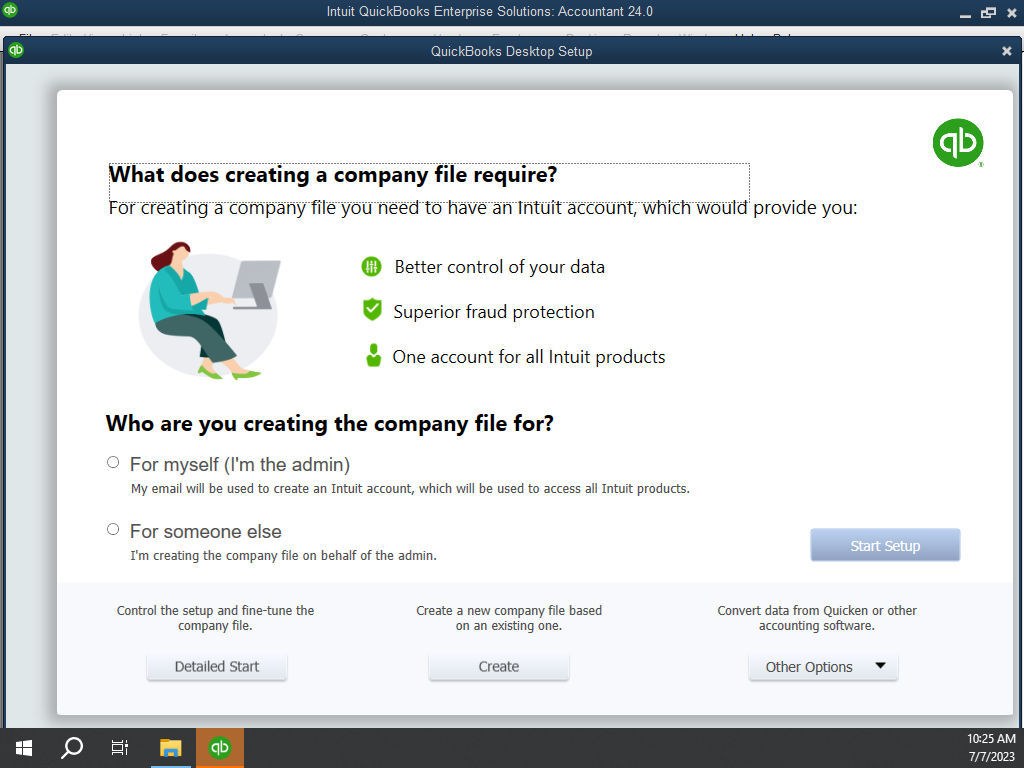
The separate Enterprise option for creating a company from an existing company file is useful in a different situation. It copies selected setup information, not a complete business history. Do not substitute it for a migration without reviewing Intuit's description of what is copied and omitted.
Check the company and its location
- Read the company name in the open window. Compare it with your preparation record. Do not rely only on a recent-files shortcut.
- Press F2 to open Product Information and record the company-file location shown there. Confirm it is the location you intended. Keep that record privately with your setup notes.
- Close QuickBooks normally, reopen it and select the new file from the recent company list. If it is not listed, use Open or Restore Company > Open a company file then choose Next, browse to the recorded .qbw file and select Open.
- Check the company name and F2 location again. If either differs, close the file and identify the correct one before entering any transactions.
Review the choices you made during setup with the accounting owner. Keep a short record of anything still undecided, including the chart of accounts, customer and vendor lists, inventory, opening balances and access for other users. Creating the file does not demonstrate that these areas are ready.
Save an initial local backup
Save a backup before adding opening balances or importing lists. This gives you a clean starting point if that later work needs to be redone.
- If necessary, choose File > Switch to Single-user Mode.
- Choose File > Back up Company > Create Local Backup.
- Select Local Backup, then Next. Use Browse to choose the prepared destination and review the available backup options.
- Select OK, then Save it now and Next. Complete any remaining save prompts and wait for QuickBooks to confirm the backup.
- Check that the destination contains the new .qbb file with the expected date. Record its location privately.
A completed backup is one check. Proving recovery requires restoring a backup to a separate test location and checking the restored company. Do not restore over your working file just to test it. This guide establishes the initial file and backup; it does not certify a recovery test or a finished accounting conversion.
What should be true when you finish?
- The intended company opens again without an error.
- The company name and recorded file location match your setup record.
- The initial backup exists in the selected destination.
- The accounting owner knows which setup decisions and data-loading work remain.
If creation or reopening fails, keep the exact error message and the step where it occurred. Check that you can access the approved folder and that you selected the intended file. Ask your administrator or QuickBooks support to resolve persistent access or file errors before loading records. Do not delete an existing company or repeatedly create similar files while troubleshooting.
The result is a new, identifiable company file with an initial backup. Before using it for live bookkeeping, complete and reconcile the relevant lists, balances and historical entries. Those tasks need their own checks against the business's approved records.
Sources and version notes
Official documentation reviewed on 8 October 2026. The Desktop help links below use the US edition. The Enterprise installation page is Canadian and uses some older interface labels; only its basic new-company route is used here. Payroll, tax settings, licensing and regional availability are outside this procedure.
Related guides
Need help preparing your company file?
Titan Cloud Servers provides QuickBooks Desktop Enterprise setup, hosting, training and ongoing support.
Was this guide useful?
Follow Titan Cloud Servers on Facebook for more QuickBooks guides and practical advice.
Worked with our team? You can share your experience on our Google Business Profile.